Author Archives: SIJIN DEVASIA
കിടിലൻ Thumbnail നിർമ്മിക്കാം ! Using Smartphone |
A video thumbnail is the first disclosed image when browsing youtube videos. An eye-catching image draws us in whereas boring image takes us off.
While uploading a video, YouTube will offer you some sort of choices to set a frame from your uploaded video, but wait for a moment and rewind your thought; is it alluring enough to freeze your audience?
Simply, a basic goal of a thumbnail is to get maximum clicks. Get the audience, more audience, view our content and move forward to view our other content.
Tools For Making Thumbnail
Pixellab
Features:
Text: add and customize as much text objects as you want…
3D Text: create 3d texts and overlay them on top of your images, or have them stand on their own in a cool poster…
Text effects: make your text stand out with dozens of text effects like : Shadow, Inner Shadow, Stroke, Background, Reflection, Emboss, Mask, 3d text…
Text color: Set your text to any fill option you want, be it a simple color, a linear gradient, a radial gradient, or an image texture.
Text font: choose from 100+, hand picked fonts. Or use your own fonts !
Stickers: add and customize as much stickers, emojis, shapes, as you want…
Import images: add your own images from gallery. This could come in handy when you have your own stickers, or you want to composite two images…
Draw: pick a pen size, a color, then draw anything you want. after that the drawing acts like a shape and you can resize it, rotate it, add shadow to it…
change the background: with the possibility of making it : a color, a gradient or an image.
Save as a project: you can save anything you do as a project. It’ll be available for use even after closing the app!
Remove the background: be it a green screen, a blue screen or simply a white background behind an object in an image that you found on Google images; PixelLab can make it transparent for you.
Edit image perspective: you can now perform perspective editing (warp). Handy for, replacing a monitor’s content, changing a road sign’s text, adding logos on boxes…
Image effects: enhance your pictures’ look by applying some of the available effects, which include vignette, stripes, hue, saturation…
Export your Image: save or share at any format or resolution you want, For easy access you can use the Quick Share buttons to share the image to social media apps with a click of a button (ex : facebook,twitter, instagram…)
Create memes: using the provided meme preset, you can easily have your memes ready for sharing in matter seconds.
Browse quotes and insert anything you like, into what you’re making !
Malayalam Text Editor
Malayalam Troll and Greetings Maker is a complete image editor application.
Using this app which you can create your own Trolls and Greetings and share them with all your friends.
This app specially designed for Malayalees to create own Trolls and Greetings easily.
* Remove Our Watermark (Free And Paid)
* Pick Images from your Album to Generate Trolls and Greetings
* Comes with 3000 Film scene
* 5 Greetings Templates
* Add Texts with 10 Malayalam and 10 English Fonts
* 200+ Downloadable Malayalam And English Fonts
* A huge selection of Stickers, Memes, Clip arts, Frames
* Can draw your own pencil sketch
* Easy share in WhatsApp, FaceBook, email, and other installed apps
* Share your trolls and greetings as public
* Mark your favorite trolls and greetings
* Water mark option
* Adjust text color and size
* Easily create complex Trolls and Greetings easily
* Move Images, captions anywhere you want and add your own
* Image Cropping
* Choose background as Patterns
* Add and adjust color of borders for texts
* SEARCH / Filter – you can find you favorite images in seconds
* New Images and templates will added regularly!
* Easy to Use
Sub 4 Sub Consequcenses In Youtube
The term Sub4Sub is related with YouTube where Sub stands for Subscribe.On YouTube, Subscribers are one of the most important factors for Audience Building.To gain Subscribers, Creators (those who create and publish videos on YouTube) other Creators to Subscribe their channel for which in return They will also Subscribe to their channel.
In short, Sub4Sub means You subscribe my channel, I’ll Subscribe You Back.
Youtube Fake engagement policy
YouTube doesn’t allow anything that artificially increases the number of views, likes, comments, or other metrics either by using automatic systems or serving up videos to unsuspecting viewers. Also, content that solely exists to incentivize viewers for engagement (views, likes, comments, etc) is prohibited.
Content and channels that don’t follow this policy may be terminated and removed from YouTube.
Important: If you hire someone to promote your channel, their decisions may impact your channel. Any method that violates our policies may result in content removal or a channel takedown, whether it’s an action taken by you or someone you’ve hired.
We consider engagement to be legitimate when a human user’s primary intent is to authentically interact with the content. We consider engagement illegitimate, for example, when it results from coercion or deception, or when the sole purpose of the engagement is financial gain.
If you’re posting content
Don’t post content on YouTube if it fits any of the descriptions noted below.
- Links to or promotes third-party services that artificially inflate metrics like views, likes, and subscribers
- Content linking to or promoting third-party view count or subscriber gaming websites or services
- Offering to subscribe to another creator’s channel only if they subscribe to your channel (“sub4sub”)
- Note: You’re allowed to encourage viewers to subscribe, hit the like button, share, or leave a comment
- Content featuring a creator purchasing their views from a third party with the intent of promoting the service
This policy applies to videos, video descriptions, comments, live streams, and any other YouTube product or feature. Keep in mind that this isn’t a complete list.
Credit : Youtube Help Centre
Youtube Channel Basics
1. How To Create A Youtube Channel
Learn How to create a youtube channel in 2022 ! A step by step guide for youtube beginners.
As YouTube has become the second most popular search engine in the world, it’s no wonder that more and more people want to learn how to make a YouTube Channel of their own.
With a little bit of knowledge and preparation, creating a YouTube channel can mean the start of building a library of accessible content that shows up and ranks in both Google and YouTube, that gets found YEARS after you create and upload it.
2 : YouTube Studio Full Tutorial
Here in this video we are going to learn how to properly upload videos on YouTube in 2022. In this video in malayalam language. Here we also check how to get reach on YouTube. how to use Youtube Studio properly. How to set endscreen annotation and I card on YouTube video. How to set audience on YouTube. How to set privacy on YouTube videos. How to set title, description,hashtag and tag on YouTube video.
3. How to enable Custom Thumbnail
In this video I show you How To Verify Your YouTube Channel and How To Enable Custom Thumbnails on your YouTube Channel. This will allow you to create your own custom thumbnails and upload them to your YouTube videos.
4. How To Add Endscreen
End screens can be added to the last 5 to 20 seconds of a video. You can use them to promote other videos, encourage viewers to subscribe, and more.
5. Copyright Claim On YouTube
How to remove copyright claims on YouTube video.how to remove copyright claim on youtube.how to remove copyright.remove copyright claims on youtube.How to remove copyright claim on YouTube videos malayalam 2022.
6.Reused Content On YouTube
Youtube reused content monetization explained in malayalam 2022.Monetization rejected due to reused content.Youtube monetization rules in malayalam.
7. Community Guidelines On YouTube
This video is an overview of YouTube’s Community Guidelines — an important set of policies you need to know to post videos on YouTube.
8. Custom URL on YouTube
Learn how to enable custom url on YouTube channel in 2022. Creating a custom URL is quick and easy. But before we show you how, you should know whether you meet the requirements to do so. If you’ve completed these three steps, you should have no problem setting up a custom YouTube URL.
9. Monetization On YouTube
This video is all about how you can monetize your content on YouTube to start generating revenue. This guide covers the seven rules you need to follow to start monetizing your YouTube videos,
10. YouTube Channel Full Step By Step Process
Want to make money without leaving home ? Or do you want to figure out ways to make money online ? This series named ONLINE PAISA which help you to find the ways to earn money online.
This video is the part 1 of this series and today I will be discussing with you about how to earn money from youtube,Starting a email id, creating a youtube channel , custom thumbnail, channel icon and banner, monetization criteria,google Adsense,google Adsense payments etc.
Best App For Making Youtube Thumbnail
PixelLab is a simple and easy-to-use app that’s popular for adding text to images. The software has text effects like inner shadow, emboss, and reflection, and the app allows you to create 3D text and overlay them on top of your thumbnail image.
You can use the app to create thumbnails. Fire up PixelLab’s preset aspect ratio for YouTube thumbnails and use the resize tool to adjust the layout’s width and height.
The thumbnail creator has a tool to change the perspective of an image. You’ll also find a drawing tool to create a simple sketch. You can add color, resize, rotate, and add shadow to your drawings.
PixelLab lets you upload images from your device gallery and add stickers, emojis, and backgrounds. With the app, you can make your background a photo, a color, or a gradient.
To enhance image appearance, you can adjust the hue and saturation of your photos, and add a vignette, among other effects. What’s more, you can save anything as a project to be reused even after closing the app.
Features:
Text: add and customize as much text objects as you want…
3D Text: create 3d texts and overlay them on top of your images, or have them stand on their own in a cool poster…
Text effects: make your text stand out with dozens of text effects like : Shadow, Inner Shadow, Stroke, Background, Reflection, Emboss, Mask, 3d text…
Text color: Set your text to any fill option you want, be it a simple color, a linear gradient, a radial gradient, or an image texture.
Text font: choose from 100+, hand picked fonts. Or use your own fonts !
Stickers: add and customize as much stickers, emojis, shapes, as you want…
Import images: add your own images from gallery. This could come in handy when you have your own stickers, or you want to composite two images…
Draw: pick a pen size, a color, then draw anything you want. after that the drawing acts like a shape and you can resize it, rotate it, add shadow to it…
change the background: with the possibility of making it : a color, a gradient or an image.
Save as a project: you can save anything you do as a project. It’ll be available for use even after closing the app!
Remove the background: be it a green screen, a blue screen or simply a white background behind an object in an image that you found on Google images; PixelLab can make it transparent for you.
Edit image perspective: you can now perform perspective editing (warp). Handy for, replacing a monitor’s content, changing a road sign’s text, adding logos on boxes…
Image effects: enhance your pictures’ look by applying some of the available effects, which include vignette, stripes, hue, saturation…
Export your Image: save or share at any format or resolution you want, For easy access you can use the Quick Share buttons to share the image to social media apps with a click of a button (ex : facebook,twitter, instagram…)
Create memes: using the provided meme preset, you can easily have your memes ready for sharing in matter seconds.
Browse quotes and insert anything you like, into what you’re making !
How To Create A Youtube Channel In 2022
Making a successful YouTube channel starts with making a YouTube channel. Here’s how to build your account.
Create a Youtube channel
- Sign in to YouTube on a computer or the mobile site.
Follow these instructions to create a youtube channel
If you use Gmail or other google services you probably already have a Google account.so skip ahead to the next step.Then sign in to youtube application or youtube site.
2. Create a Youtube Channel
Please click the profile picture shows in the top right corner of the page and click the create channel option.
3. Customize your YouTube channel
In your channel dashboard, click Customize channel. Go through the three tabs — Layout, Branding and Basic Info — to enter information that will help optimize your channel for audience discovery.
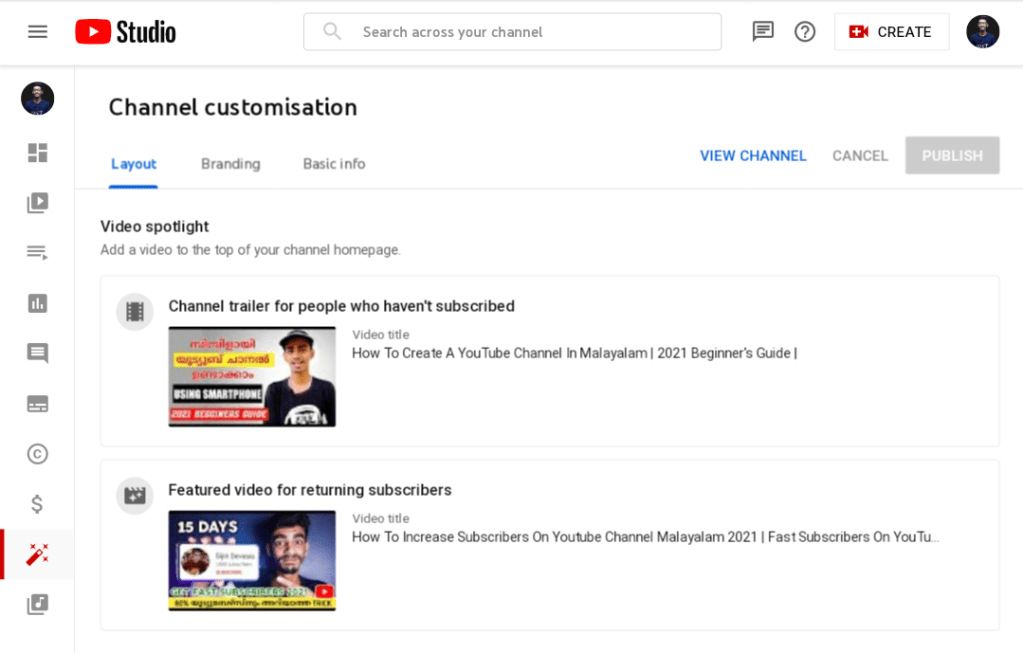
When filling out this information, use descriptive keywords that will help your account appear in searches.
Keywords can include your channel’s topics, your industry, questions your content can answer or products featured.
Under Branding, you’ll have the opportunity to upload your channel art and icons to give your channel a unique look. One that, ideally, aligns with your overall brand and visually connects this YouTube account with your other social media platforms and web presence.
Thats all ! Your Youtube Channel Is Ready !
 Techiefides